
Google Review QR Code Generator
Search your business, pick a design, customise the colours and fonts, and download a print-ready PNG. Free, no signup, no watermark.
Contact details (used on the business card)
Add your Place ID or review link to enable downloads. Always scan-test before printing.
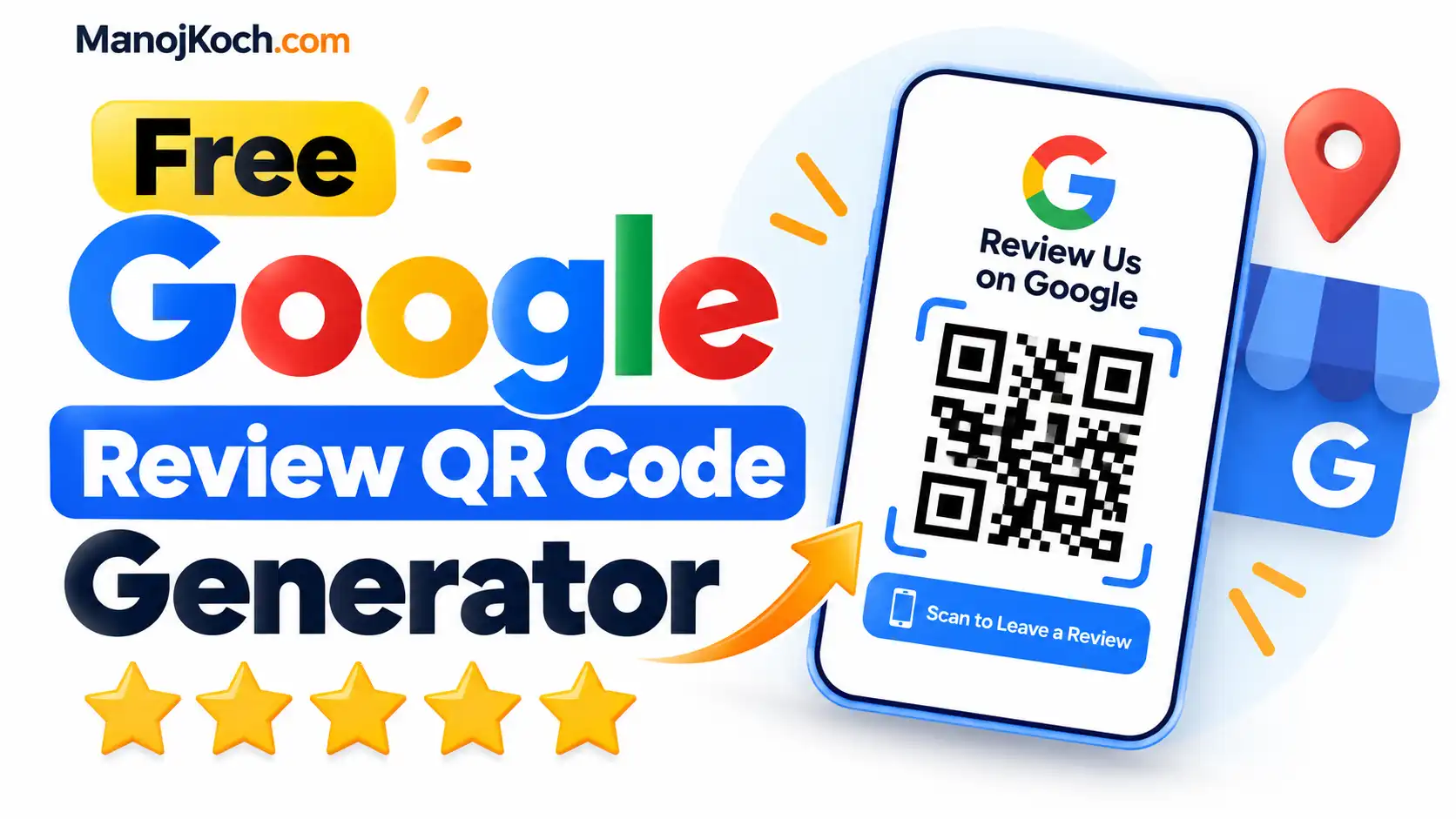
A Google review QR code is a square barcode that opens your business’s Google review box when a customer scans it with their phone camera. The customer does not need to search for your business or find the review button. This free tool helps you make that QR code and put it on a ready-to-print design.
What is Google Review QR Code Generator?
Google Review QR Code Generator turns your Google review link into a QR code. It then places the code on a printable design, such as a counter sign, table sticker, review card, or poster. You pick the design, add your business name and message, choose your colours, and download a PNG image.
The tool works for any business with a Google Business Profile. This includes restaurants, hotels, salons, clinics, shops, cafes, offices, and service businesses. Customers can scan the code with the normal phone camera. They do not need to install an app.
A QR code only makes asking easier. It does not guarantee reviews, and it does not improve your Google ranking by itself. Customers still choose whether to leave a review and what to write.
Features of Google Review QR Code Generator
Here is what the tool does today.
- Makes a QR code from your Place ID or review link. Paste either one, and the tool builds the QR code. If the business search box is shown on this page, you can also search for your business by name.
- 14 print-ready designs. You can choose from a counter sign, A4 poster, service desk sign, flyer, newsletter, table sticker, round sticker, receipt block, invitation, digital display, review card, door sticker, packaging insert, and business card.
- Your own text. You can change the business name, the headline, and the short instruction, for example, “Scan to leave a Google review”.
- Fonts and colours. You can choose fonts for the business name and the headline. You can also choose the brand colour, accent colour, star colour, and name colour.
- Live preview. You can see the design change as you type.
- Two downloads. You can download the full design as a PNG, or just the QR code on a white background.
- Copy and test link. You can copy the review link for emails and messages, and open it to check that it works.
- No watermark and no sign-up.
What the tool does not do:
- It does not add your logo inside the QR code.
- It does not count scans.
- It cannot change where the code points after you print it.
If you need those, see the sections on logos and design below.
How to use the Google review QR code generator
Learn how to use the Google review QR code generator: Step-by-Step Guide
paste your link.
If you have no search box, paste your Place ID or your Google review link into the field.
Check the business name.
Edit it if you want a shorter or different name on the design.
Choose a design.
Pick the one that fits where you will put it. The small previews update as you change colours.
Write your message.
Keep the headline short, like “How was your visit?” and the instruction clear, like “Scan to leave a Google review”.
Pick fonts and colours.
Use your brand colours. Make sure the text is easy to read.
Download.
Choose “Download print-ready PNG” for the full design, or “QR code only” if you want to place the code in your own design.
Test it.
Scan the code with your phone camera before you print. This step takes one minute and can save you from printing the wrong code.
How to get a Google review QR code
There are two free ways to get one.
Option 1: Use Google’s own QR code
Google lets Business Profile owners create a review link and QR code. Google says this works only in a computer browser, not on mobile devices.
- Go to your Business Profile on a computer.
- Select Read reviews, then Get more reviews.
- To copy the review link, select Copy.
- To save the QR code, right-click it and choose Save image as.
This gives you a plain QR code image. You can email or message the link, and you can print the code, but it has no design around it.
Option 2: Use this tool
If you want a finished sign, card, or sticker, copy your review link from Google (or find your Place ID) and paste it into this tool. The tool builds the QR code and puts it on the design you choose.
What is a Place ID?
A Place ID is a code that Google gives to every place on Google Maps. It helps the tool point your QR code to the right business. Google has a free Place ID finder tool. If you search for a business name and the search box is available, the tool can fill in the Place ID for you.
How to request reviews from Google customers
Google’s advice is simple: give customers an easy link or QR code, and ask them politely. Google suggests ways to share the link or QR code:
- On your receipts
- In thank-you emails
- At the end of a chat
- On a printed code in your shop
Customers must be signed in to a Google Account to leave a review. A Google Account can use a non-Gmail email address too. Some customers may not have an account ready, so they may need an extra minute.
How can different businesses use the QR code?
- Restaurants and cafes: Put a table sticker or small card on each table, or add a code to the bill folder. Customers can scan while they wait for the bill or the coffee.
- Hotels: Place a card in the room, at the front desk, or in the check-out email. Ask after the stay, when guests have a view of the whole visit.
- Salons and spas: Put a counter sign near the mirror or payment desk. Customers are often relaxed and happy when they pay.
- Clinics and dental offices: Use a counter sign in the waiting area, or share the link by message after the visit. Do not ask for anything that reveals private health details, and never put patient information in a review request.
- Shops: Print a door sticker, a counter sign, or a code on the bag or receipt.
- Service businesses: Plumbers, electricians, cleaners, and repair shops can put the code on invoices, business cards, or a small card left after the job.
- Offices and agencies: Add the link to email signatures, thank-you emails, and project completion messages.
Benefits of using a Google review QR code
- Fewer steps for the customer. Without a code, a customer has to open Google, find your business, and tap the review button. A code skips these steps.
- It reaches customers at the right time. You can ask while the experience is still fresh, at the counter, table, or door.
- It makes asking simple for your team. Staff can say “You can scan this if you’d like to leave a review” instead of explaining how to find you.
- It works in print and online. The same link can go on a sign, a receipt, and an email.
- You control the look. A clear design with your colours and name feels more trustworthy than a plain black-and-white square.
It is wise to be honest about what it cannot do. A QR code does not make people write reviews. It only removes some of the effort.
Where to place your Google review QR code
| Place | Why it works |
|---|---|
| Review cards | Hand one out with the receipt or bag |
| Tables | Customers can scan while waiting |
| Counters and reception desks | Customers stand there with their phone nearby |
| Receipts and invoices | Every customer sees them |
| Packaging and parcels | Reaches online and takeaway customers |
| Business cards | Good for people who visit you in person |
| Posters and flyers | Good for windows and waiting rooms |
| Store displays and door stickers | Catches customers as they leave |
| Email and digital messages | Use the review link instead of the QR code |
On screens and in emails, a QR code is often awkward, because the customer would need a second device to scan it. In those places, share the review link instead. The tool lets you copy it.
Google review QR code design tips
A beautiful code that does not scan is useless. Follow these simple rules.
- Use strong contrast. Dark code on a light background works best. Do not use light colours for the code or put it on a busy picture.
- Keep space around it. Leave a clear margin. Do not let text or lines touch the code.
- Make it big enough. A common rule of thumb is a few centimetres wide on a card and larger on a poster. This is practical advice, not an official rule, so always test on the real printed item.
- Print it sharp. Use the high-resolution PNG. Do not stretch a small image.
- Tell people what to do. Short words work well: “Scan to leave a Google review”. People are more likely to scan when they know what will happen.
- Put it at eye level. A code on the floor or a high shelf will be missed.
- Test every printed item. Scan it from a normal distance with different phones.
QR code with logo
Many QR tools let you place a logo in the middle of the code. This can look nice, but it hides part of the code. A big logo can make it hard to scan. If you do this in another tool, keep the logo small and test the result. This generator does not add a logo inside the code. Your business name and colours appear on the design instead.
QR code templates
This tool includes 14 templates, so you can get a sign, card, or sticker without design software. Choose a simple design if your business is small and you want fewer things on the page.
QR code stands
A stand is a small holder for a card or sign, often used on a counter or table. This tool does not sell stands. You can download the counter sign, table sticker or review card design, print it, and put it in any stand from a print shop or stationery store.
Canva templates
If you prefer to design in Canva, download the “QR code only” image from this tool. Then add it to your own Canva design. Keep the QR code on a white background, do not recolour or stretch it, and test it after you export.
Asking customers for reviews the right way
The way you ask matters as much as the code.
- Ask politely and simply. For example: “If you enjoyed your visit, we’d really appreciate a review. You can scan this code.”
- Ask everyone, not only happy customers. Google notes that a mix of positive and negative feedback often feels more trustworthy. Asking only the customers you expect to be happy can give a false picture.
- Do not pay for reviews or offer gifts. Google says offering free or discounted goods or services in exchange for reviews is fake engagement and is strictly prohibited. This includes asking for reviews to be posted, changed, or removed. Many QR code guides suggest rewards. Do not follow that advice for Google reviews.
- Do not write reviews for customers. The review must reflect a genuine experience.
- Reply to reviews. Google recommends replying to reviews. Keep replies short, polite, and helpful. For a negative review, apologise when it is right to do so, do not argue, and offer to continue the conversation privately by phone or email.
- Ask at the right moment. Right after a good service, delivery, or payment is often best.
Is the Google review QR code free?
Yes. Google’s own QR code for your Business Profile is free. This tool is also free to use. You do not need to sign up.
Can I get a Google review QR code for Amazon?
No, not in the way you might hope. A Google review QR code opens your Google review page. It does not collect reviews on Amazon. Amazon product reviews appear on Amazon, and Amazon has its own review rules.
If you sell on Amazon, check Amazon’s Customer Reviews policy and the Seller Code of Conduct before you print anything. Seller guides say Amazon does not allow incentives for reviews, and does not allow asking only for positive reviews. They also warn against sending customers away from Amazon to complain. Seller guides disagree on what QR codes on package inserts are allowed, so ask Amazon Seller Support if you are unsure.
Can ChatGPT generate a Google review QR code?
Sometimes an AI assistant can create a QR code image by running a small program. The result may vary, and it does not know your Google Place ID unless you give it. A chat tool is also not designed to give you print-ready designs. A dedicated tool like this one is simpler, and you should still scan the result with your phone.
How can I detect fake Google reviews?
No single sign proves a review is fake on its own. These are common warning signs to look at together:
- Many reviews posted within a very short time
- Very similar wording across different reviews
- Reviews that praise or attack without any detail about the service
- Reviewers with no other activity or a strange profile
- Reviews that mention things your business does not sell
- Reviews from people who were not your customers
If you are a business owner and believe a review breaks Google’s rules, you can report it:
- Go to your Business Profile and select Read reviews.
- Next to the review, select Report.
- Choose a reason, such as “Spam”, and select Send report.
Google says review checks typically take several days. Only reviews that break Google’s policies can be removed. Do not report a review just because you disagree with it or dislike it. Google also uses automated spam detection and says it can sometimes remove real reviews by mistake. If that happens, contact Google Business Profile support.
If you are a customer reading reviews, look at the overall pattern, not one single review.
More questions
How do I get my Google QR code?
Open your Business Profile on a computer, choose Read reviews, then Get more reviews, and save the QR code. Or paste your review link or Place ID into this tool to get a designed version.
How do I create a QR code to request reviews?
Get your Google review link, paste it into a QR code generator, download the code, and test it with your phone. Then put it on a card, sign, receipt, or sticker with a short message such as “Scan to leave a Google review.”
Do I need a QR code scanner?
No. Most phone cameras scan QR codes. Open the camera, point it at the code, and tap the link that appears. You can also use the “Test link” button on this page to open the link directly. Online scanners exist, but you do not need one.
Does a QR code change if my review link changes?
The QR code created here is fixed. It always points to the link you used. It does not show scan counts, and you cannot edit where it goes after printing. If your link changes, you need to print a new code.
Can I make one for each branch?
Yes. Make a separate QR code for each location, using the Place ID or review link for that location.
How is this tool different from other generators?
Some tools, such as Wiremo’s generator, ask you to search for your business, pick a template, and email you the file. This tool works directly in your browser and lets you download the design right away. Other tools offer extras, such as scan tracking, that this one does not.
Does a QR code improve my Google ranking?
No one can promise this. A code may help you collect more genuine reviews, but it does not guarantee a better ranking or more customers.